
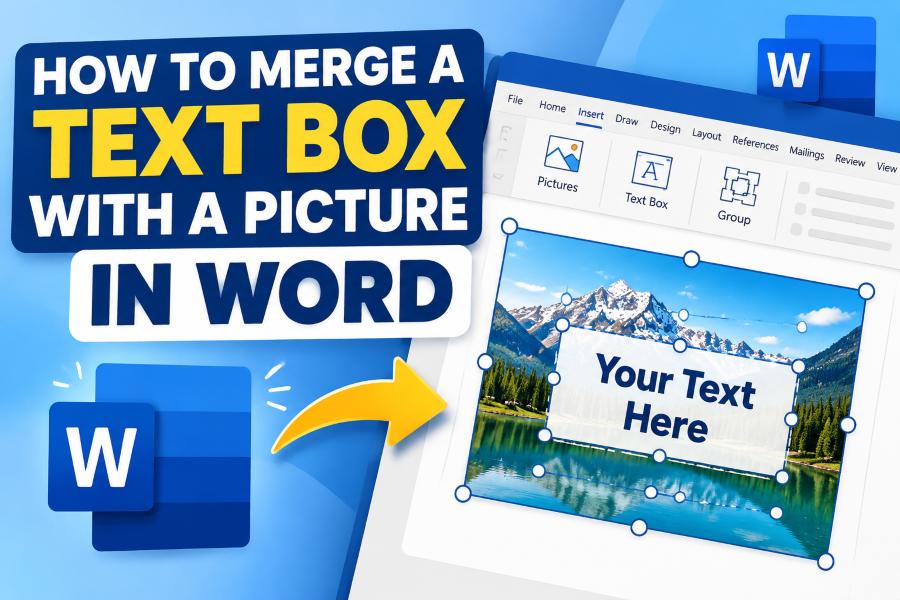
Microsoft Word offers many tools for creating professional documents, presentations, flyers, reports, and visual layouts. One of the most useful design techniques is combining a text box with a picture. By merging a text box with an image, you can create attractive designs such as banners, posters, invitations, certificates, brochures, and social media graphics directly inside Word.
Many users add a picture and a text box separately but struggle when moving, resizing, or formatting them together. The solution is to group the text box and picture so they behave like one object. Once grouped, you can move, resize, copy, or apply formatting to both elements at the same time.
This guide explains how to merge a text box with a picture in Word, different methods you can use, common problems, and tips for creating better layouts.
What Does It Mean to Merge a Text Box with a Picture in Word?
In Microsoft Word, “merging” a text box with a picture usually means grouping the two objects together. Word does not permanently combine them into a single image by default, but grouping creates a connection between them.
When you group a picture and a text box:
- They move together as one object.
- They keep their relative position.
- You can resize both at the same time.
- You can copy or duplicate the design easily.
- Formatting changes apply to the entire group.
For example, if you create a promotional banner with a product image and a text box saying “50% Off Sale,” grouping allows you to move the entire banner without adjusting the text position separately.
Why Merge a Text Box with a Picture in Word?
Combining text and images is useful in many situations. Some common examples include:
Creating Marketing Materials
Businesses often create:
- Product advertisements
- Event posters
- Sales flyers
- Business cards
- Promotional graphics
A grouped image and text box make the design easier to manage.
Designing Reports and Documents
Professional reports often include:
- Image captions
- Highlighted information boxes
- Diagrams
- Visual explanations
Grouping prevents text from moving away from related images.
Making Presentations
Word documents are sometimes used to create presentation-style pages. Combining text and pictures helps maintain consistent layouts.
Creating Social Media Graphics
Many users create simple social posts in Word. A picture with a text overlay can be easily moved and duplicated after grouping.
How to Insert a Picture and Text Box in Word
Before grouping objects, you need to add both elements to your document.
Step 1: Insert a Picture
Follow these steps:
- Open your Microsoft Word document.
- Place your cursor where you want the picture.
- Click the Insert tab.
- Select Pictures.
- Choose the image from your computer.
- Click Insert.
Your image will appear inside the document.
Step 2: Insert a Text Box
To add text over or near the picture:
- Go to the Insert tab.
- Click Text Box.
- Choose a built-in style or select Draw Text Box.
- Click and drag on the document.
- Type your text.
You can customize:
- Font style
- Font size
- Text color
- Background color
- Border style
- Alignment
Prepare the Picture and Text Box for Grouping
Before merging, you need to change the layout settings of both objects.
By default, Word treats pictures as part of the text flow. This can prevent grouping.
Change Picture Layout Options
- Click the picture.
- Select the Picture Format tab.
- Click Wrap Text.
- Choose an option such as:
- Square
- Tight
- Through
- In Front of Text
- Behind Text
For most designs, In Front of Text works well.
Change Text Box Layout Options
Next:
- Click the text box.
- Open the Shape Format tab.
- Select Wrap Text.
- Choose the same layout option used for the picture.
Both objects should now be floating objects instead of inline objects.
How to Merge a Text Box with a Picture in Word
Now you can group them together.
Method 1: Use the Group Option
This is the easiest method.
Step 1: Select Both Objects
Hold the Ctrl key on Windows or Command key on Mac.
Then:
- Click the picture.
- Hold Ctrl/Command.
- Click the text box.
Both objects should have selection handles around them.
Step 2: Group the Objects
After selecting both:
- Go to the Shape Format tab.
- Click Group.
- Select Group again.
The picture and text box are now merged into one grouped object.
You can click anywhere on the design and move everything together.
Method 2: Use Right-Click Grouping
Another quick method:
- Select the picture.
- Hold Ctrl and select the text box.
- Right-click on either object.
- Choose Group.
- Select Group.
This method is useful when working quickly.
How to Move a Text Box and Picture Together
After grouping:
- Click the grouped object.
- Drag it anywhere in the document.
Both the image and text box will move together.
You no longer need to adjust the text position manually.
How to Resize a Grouped Picture and Text Box
To resize the combined object:
- Click the grouped design.
- Drag any corner handle.
Use corner handles instead of side handles because they maintain the original proportions.
If you want exact sizing:
- Right-click the grouped object.
- Select Size and Position.
- Enter the required dimensions.
How to Ungroup a Picture and Text Box in Word
Sometimes you need to edit the image or text separately.
To separate them:
- Click the grouped object.
- Go to Shape Format.
- Click Group.
- Select Ungroup.
Now the picture and text box can be edited individually.
How to Put Text Inside a Picture in Word
Instead of grouping, some users want the text permanently placed on the image.
You can convert the design into one image.
Option 1: Use Word Screenshot Tool
- Select the grouped object.
- Right-click.
- Choose Save as Picture.
- Select PNG or JPG format.
Word will save the entire design as one image file.
This is useful for:
- Uploading online
- Sharing graphics
- Printing posters
Option 2: Use Copy and Paste as Picture
Another method:
- Select the grouped object.
- Press Ctrl + C.
- Go to Home.
- Click Paste dropdown.
- Choose Paste as Picture.
Word creates a single image version.
How to Add Text Over an Image in Word
A common design technique is placing text directly on an image.
Follow these steps:
- Insert your picture.
- Click the image.
- Select Wrap Text → Behind Text.
- Insert a text box.
- Place the text box over the image.
- Remove the text box background if needed.
To make the text box transparent:
- Select the text box.
- Open Shape Format.
- Choose Shape Fill.
- Select No Fill.
- Choose Shape Outline → No Outline.
Your text will appear directly on the picture.
Common Problems When Grouping Text Boxes and Pictures
Problem 1: Group Option Is Disabled
If the Group button is unavailable, the objects are probably set as inline.
Fix:
Change the layout:
Picture:
Picture Format → Wrap Text → In Front of Text
Text Box:
Shape Format → Wrap Text → In Front of Text
Then try grouping again.
Problem 2: Picture Moves but Text Box Does Not
This happens when the text box is anchored differently.
Solution:
- Select the text box.
- Open Layout Options.
- Choose the same wrapping style as the picture.
Problem 3: Text Box Changes Position After Resizing
Word may automatically adjust object placement.
To prevent this:
- Right-click the object.
- Select More Layout Options.
- Choose a fixed position.
Tips for Better Picture and Text Designs in Word
Use High-Quality Images
Always start with a clear image. Low-resolution images may become blurry after resizing.
Recommended formats:
- PNG for graphics and screenshots
- JPG for photographs
- SVG for logos and icons
Keep Text Readable
When adding text over images:
- Use strong contrast.
- Avoid placing text over busy areas.
- Use shadows or backgrounds when needed.
Use Alignment Tools
Word provides alignment options:
- Align Left
- Align Center
- Align Right
- Align Top
- Align Middle
These tools help create professional layouts.
Lock Your Design
After creating your design:
- Group all objects.
- Save the document.
- Export as PDF if sharing.
This prevents layout changes on different devices.
Can You Permanently Combine a Picture and Text Box in Word?
Yes. While grouping only links objects together, you can permanently combine them by saving the grouped design as an image.
Steps:
- Select the grouped object.
- Right-click.
- Choose Save as Picture.
- Select PNG format.
The result is one image containing both the original picture and text.
How to Merge a Text Box with a Picture in Word Online
Word Online has fewer design features compared to the desktop version.
To group objects:
- Insert the picture.
- Add a text box.
- Select both objects.
- Use the group option if available.
If grouping is unavailable, create the design in desktop Microsoft Word and upload the finished file.
How to Merge Text and Images in Word on Mac
The process is almost identical:
- Insert your picture.
- Add a text box.
- Select both objects while holding Command.
- Open the Shape Format tab.
- Choose Group.
You can later ungroup them whenever needed.
Frequently Asked Questions
Can I combine a picture and text box permanently in Word?
Yes. Group them first, then save the grouped object as a picture. This creates one image file containing both elements.
Why can’t I group a text box and picture in Word?
Usually, one or both objects are set as “In Line with Text.” Change the wrapping option to “In Front of Text” or another floating layout.
Does grouping reduce image quality?
No. Grouping does not reduce quality. However, resizing an image too much can lower its quality.
Can I edit text after grouping?
Yes. You can ungroup the objects, edit the text, and group them again.
Can I move multiple images and text boxes together?
Yes. Select all objects and use the Group feature to combine them into one movable object.
Conclusion
Learning how to merge a text box with a picture in Word makes document design much easier. Whether you are creating a poster, report, presentation, or promotional graphic, grouping allows you to control multiple elements as one object.
The easiest method is to insert your picture, add a text box, change both objects to floating layouts, select them together, and use the Group option. If you need a permanent combination, save the grouped design as a picture.
With these techniques, Microsoft Word becomes a powerful tool for creating professional visual designs without needing advanced graphic design software.