
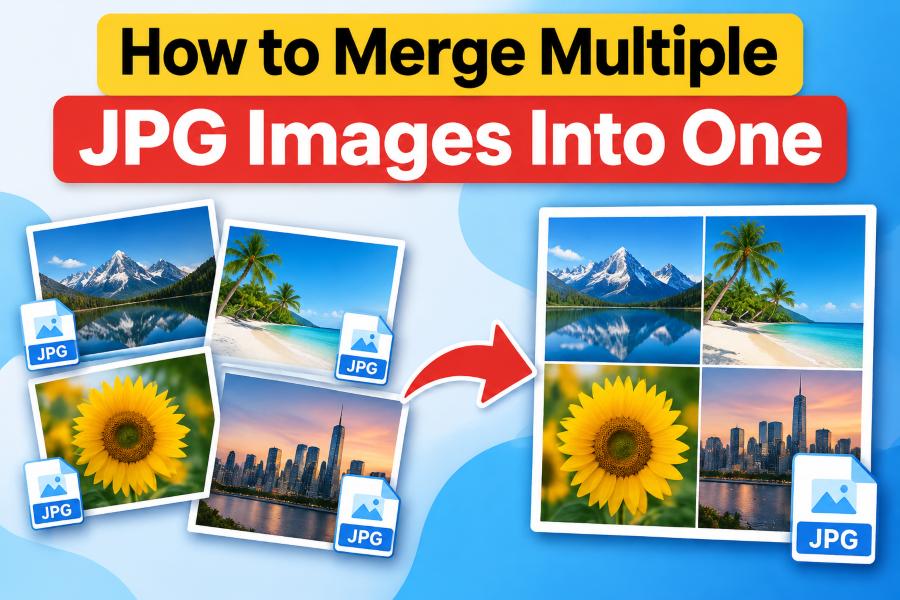
We’ve all been there. You’ve got a folder full of JPGs—screenshots of a long conversation, photos from an event, scanned receipts, or product images for a client—and you need them as a single file. Maybe you’re compiling a visual report, creating a photo collage, or just trying to send someone one image instead of twelve. The good news is that merging JPG images is easier than ever, and you don’t need expensive software or advanced technical skills to get it done.
This guide will walk you through every major method for combining multiple JPGs into one image, from instant browser-based tools to professional software and even command-line automation. By the end, you’ll know exactly which approach fits your workflow, whether you’re a casual user, a content creator, or a developer looking to automate image processing.
Why Merge JPG Images?
Before diving into the how, it’s worth understanding the why. Merging images serves several practical purposes. For social media managers, combining before-and-after photos or multiple product shots into a single image creates a cleaner post that tells a more complete story. For students and educators, merging scanned notes or diagrams into one PDF makes studying and submission far easier. E-commerce sellers frequently merge product images to show color variations or different angles in a single listing image. And for anyone dealing with receipts, invoices, or legal documents, combining multiple scans into one file simplifies archiving and sharing.
The core benefit is simplicity: one file, one upload, one link to share. No more zip files that confuse recipients or attachments that get lost in email threads.
Method 1: Browser-Based Tools (Fastest and Easiest)
The quickest way to merge JPGs is using a free online tool. There’s no software to install, no account to create, and most modern tools work entirely within your browser—meaning your images never leave your device.
MergeJPG: A Privacy-First Online Merger
Among the many online options, MergeJPG (available at mergejpg.co and its associated domains) has gained attention for a specific reason: it processes everything locally in your browser using the JavaScript Canvas API. Your images are never uploaded to a server, which addresses one of the biggest concerns people have about online image tools.
The tool was created by Alexander Duan, a full-stack developer who built it after watching a friend struggle with existing online mergers that required uploading photos and added watermarks. As he explained, “All processing happens in your browser using JavaScript’s Canvas API and FileReader. Your images are processed in memory and never sent anywhere. Even if I wanted to see them, I couldn’t—they literally never touch my server”.
As of late 2024, MergeJPG had processed over 50,000 image merges, all completed client-side without any server involvement. The tool is deliberately simple: you upload your images, choose a layout (vertical, horizontal, or grid), and download the result. It supports JPG, JPEG, PNG, and WebP inputs, with output options including JPG, PNG, and PDF. The interface allows you to drag to reorder images, rotate them in 90-degree increments, and preview the merged result in real time.
For most users, this is more than enough. The tool handles up to 10 images at once (10MB each), which covers the vast majority of everyday merging tasks. It’s free, requires no sign-up, and adds no watermarks. The developer has been candid about limitations—browser processing can struggle with very large batches or extremely high-resolution images, and desktop tools like GIMP are better suited for heavy-duty batch work.
Other Notable Online Tools
Beyond MergeJPG, several other browser-based options exist. GroupDocs Merger offers a free online tool that supports rearranging images before merging, with no registration required. Aspose provides a similar web-based JPG merger with drag-and-drop upload and format selection. For users who need to merge images into a PDF specifically, tools like Lumin PDF and JPG2PDF offer straightforward conversion with page reordering.
The advantage of all these tools is zero friction. The disadvantage is limited customization—you typically get basic layouts without fine control over spacing, sizing, or alignment. For quick, one-off tasks, they’re perfect. For anything more complex, you’ll want dedicated software.
Method 2: Desktop Software for More Control
When you need precise control over the final output—custom spacing, exact positioning, or advanced compositing—desktop image editors are the way to go.
GIMP (Free and Open Source)
GIMP is the go-to free alternative to Photoshop, and it handles image merging well. The typical workflow involves creating a new canvas large enough to hold all your images, then opening each JPG as a separate layer and positioning them as needed. Once arranged, you can use Image → Merge Visible Layers (or the shortcut Ctrl+M) to flatten everything into a single layer, then export as JPG or PNG.
For a more automated approach, GIMP’s Create Panorama Image feature (found under the Image menu) lets you add multiple images and have them stitched together, though this is primarily designed for landscape photos rather than general-purpose merging. The layer-based approach gives you complete freedom: you can resize individual images, adjust opacity, apply blending modes, and add effects before merging.
Adobe Photoshop
Photoshop offers the most polished experience for image merging, though it comes at a cost. The simplest method is to open a new document sized to fit your final composition, then use File → Place Embedded to add each JPG as a separate layer. You can freely move, scale, and rotate each image before merging.
For more seamless results, Photoshop’s Auto-Blend Layers command (under Edit menu) can combine images with smooth transitions, which is particularly useful when merging photos that overlap or when creating panoramas. The Contact Sheet feature lets you automatically arrange a folder of images into a grid layout, which is ideal for creating uniform collages from large batches.
The trade-off is complexity. Photoshop is overkill for a thirty-second merging task, and its subscription model isn’t justified for occasional use. But if you already have it, it delivers unmatched control.
IrfanView (Windows)
For Windows users who want something lighter than GIMP or Photoshop, IrfanView is an excellent free option. The process is straightforward: open IrfanView, go to Image → Create Panorama Image, add your JPGs, arrange their order, and click Create Image. You can then save the result in any common format. It’s not as feature-rich as GIMP, but for simple vertical or horizontal merging, it’s fast and reliable.
Dedicated Merge Apps
Several purpose-built applications exist for image merging. STG Picture Merge is a free Windows program that combines two images with adjustable transparency. Batch Picture Combiner is an open-source tool that can fit multiple photos onto a single page, supporting JPEG, PNG, BMP, and TIFF formats. For Mac users, Union is a free menu bar app that offers drag-and-drop image merging with live preview, while Preview (the built-in macOS image viewer) can combine images into a PDF by selecting them all and using the Print dialog’s PDF export option.
Method 3: Command-Line Tools for Automation
If you’re comfortable with the terminal, command-line tools offer incredible power and speed for image merging—especially when you need to process many files or integrate merging into a larger workflow.
ImageMagick: The Swiss Army Knife
ImageMagick is the most widely used command-line image processing tool, available for Linux, macOS, and Windows. Its magick command (or convert in older versions) can merge images in several ways.
For a simple vertical stack:
text
magick input1.jpg input2.jpg input3.jpg -append output.jpg
For a horizontal stack:
text
magick input1.jpg input2.jpg input3.jpg +append output.jpg
The -append option stacks images vertically, while +append stacks them horizontally. To merge all JPGs in a directory into a single vertical image:
text
magick *.jpg -append output.png
For grid layouts, ImageMagick’s montage tool is ideal:
text
montage *.jpg -tile 2x2 -geometry +5+5 collage.jpg
This creates a 2×2 grid with 5 pixels of spacing between images. The tool handles batch processing effortlessly—you can merge hundreds of images with a single command, making it far faster than any GUI-based approach for large-scale work.
Rust CLI Tools
For developers who prefer modern tooling, image-combine is a Rust-based CLI that merges multiple images left-to-right into a single output:
text
image-combine img1.jpg img2.png img3.webp -o out.png
It’s fast, lightweight, and handles mixed input formats gracefully. While less feature-rich than ImageMagick, it’s a clean solution for straightforward horizontal merging.
Method 4: Programming Libraries for Developers
When you need to integrate image merging into an application or automate it as part of a larger pipeline, programming libraries give you full control.
Python with Aspose.Imaging
Aspose.Imaging for Python provides a robust API for image merging. The basic workflow involves loading all images, calculating the total width or height for the output canvas, creating a new blank image, and then drawing each source image onto it at the appropriate position.
A simplified example for horizontal merging:
python
from Aspose.Imaging import Image
import Aspose.Imaging as aspose

images = [Image.load(f) for f in ["a.jpg", "b.jpg", "c.jpg"]]
total_width = sum(img.width for img in images)
max_height = max(img.height for img in images)

merged = aspose.Imaging.Image.create(aspose.Imaging.FileFormats.Png.PngOptions(), total_width, max_height)
graphics = aspose.Imaging.Graphics(merged)
x = 0
for img in images:
    graphics.draw_image(img, aspose.Imaging.RectangleF(x, 0, img.width, img.height))
    x += img.width
    img.dispose()

merged.save("output.png", aspose.Imaging.FileFormats.Png.PngOptions())
This approach preserves image quality and gives you pixel-level control over the final composition.
GroupDocs.Merger
GroupDocs offers cloud-based and on-premises APIs for image merging in multiple languages, including Python, .NET, and Node.js. The API workflow typically involves initializing a merger object, adding source files, configuring join options (horizontal or vertical), and executing the merge. It’s particularly useful for applications that need to merge images stored in cloud storage or integrate with document management systems.
Aspose.Imaging for .NET
For .NET developers, Aspose.Imaging provides similar functionality with a clean C# API. You load images, calculate the output dimensions, create a new image with those dimensions, draw each source image using a Graphics object, and save the result. The library supports JPEG, PNG, TIFF, BMP, GIF, and more, with no quality loss during merging.
Choosing the Right Method
With so many options, how do you decide? Here’s a quick guide based on your needs:
| Your Situation | Best Method |
|---|---|
| Quick one-off merge, privacy matters | MergeJPG or another browser-based tool |
| Need custom spacing, sizing, or effects | GIMP (free) or Photoshop (paid) |
| Windows user, want something simple | IrfanView |
| Mac user, want something built-in | Preview (for PDF) or Union |
| Batch processing hundreds of images | ImageMagick via command line |
| Integrating into a web app or script | Python with Aspose.Imaging or GroupDocs API |
| Developer who prefers modern tooling | image-combine (Rust CLI) |
Tips for Better Results
Regardless of which method you choose, a few best practices will improve your output quality:
Match your source images. Merging a high-resolution photo with a low-resolution screenshot creates an inconsistent result. Where possible, use images of similar resolution and aspect ratio.
Consider the final use case. If the merged image is for print, keep the resolution high and avoid aggressive compression. If it’s for social media, you can optimize for file size without noticeable quality loss.
Think about layout. Vertical stacking works well for portrait-oriented images or when creating a scrollable narrative. Horizontal stacking suits landscape images and before-after comparisons. Grid layouts are ideal for product variations or photo collections.
Watch file sizes. Merging multiple high-resolution JPGs can create a very large output file. Most online tools apply some compression; desktop software lets you control the quality setting when exporting. For web use, aim for under 2MB if possible.
Preserve original images. Always keep your source JPGs untouched. Merge operations create a new file—they should never overwrite your originals.
The Bottom Line
Merging multiple JPG images into one is a solved problem, and you have more options than ever. For most people, a browser-based tool like MergeJPG offers the perfect balance of speed, privacy, and simplicity—no installation, no uploads, no watermarks. When you need more control, GIMP and Photoshop deliver professional-grade results. And when you need to process images at scale, command-line tools and programming libraries open up endless automation possibilities.
The key is to match the tool to the task. Don’t open Photoshop to merge two screenshots, and don’t try to merge a hundred product photos with a browser tool that caps out at ten. Once you know your options, you’ll always have the right tool for the job.