
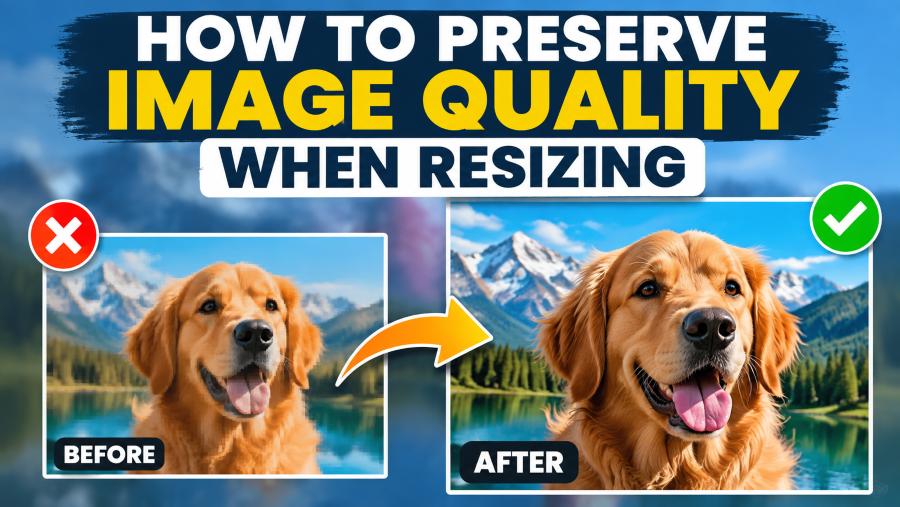
In the digital age, images are the currency of communication. Whether you are a photographer delivering a client gallery, a web designer optimizing a landing page, or a social media manager creating content, you will inevitably face the same daunting task: resizing.
On the surface, resizing seems simple. You open an image, drag a corner, type in a new number, and hit save. But anyone who has ever tried this knows the harsh reality. You shrink a photo to fit a website header, and it looks fine. You try to enlarge a small logo for a billboard, and it turns into a blurry, pixelated mess that looks like a Minecraft reject.
Why does this happen? And more importantly, how do you preserve image quality when resizing?
In this guide, we are going to dive deep into the mechanics of digital images. We will explore the difference between pixels and vectors, the algorithms that power your editing software, and the specific techniques you need to use to ensure your images stay sharp, crisp, and professional—regardless of the dimensions.
Part 1: The Science of Pixels (Why It Breaks)
To master resizing, you must first understand what you are resizing. Digital images are not continuous; they are a grid.
Raster vs. Vector
Almost all photos you take with a camera or download from the web are Raster images. A raster image is made up of a fixed number of pixels (tiny squares of color). If you have a 1000×1000 pixel image, you have exactly one million pixels.
- Enlarging (Upscaling): When you make a raster image bigger, the software has to guess what colors to put in the new pixels. It doesn’t have new information, so it looks at neighboring pixels and tries to blend them. If you stretch it too far, you get pixelation (jagged edges) or blurriness (soft edges).
- Shrinking (Downscaling): This is generally safer. However, if you remove too many pixels at once, you lose detail and create aliasing (jagged, staircase-like edges on curves).
The Golden Rule
The golden rule of image resizing is this: You cannot create detail that isn’t there.
You can redistribute pixels, but you cannot invent data. This is why professional photographers shoot in the highest resolution possible. They would rather shrink a huge image down (which increases sharpness) than try to stretch a small image up (which destroys quality).
Part 2: The “Resample” Checkbox (The Most Important Setting)
If you are using Adobe Photoshop or similar professional software, you have likely seen a checkbox labeled “Resample.” Understanding this box is the key to preserving quality.
- Resample Checked: This tells the software to change the amount of pixel data. It uses mathematical algorithms to add or subtract pixels. This is what you want when changing the physical dimensions of an image.
- Resample Unchecked: This keeps the pixel count exactly the same but changes the print size (DPI/PPI). This is used for print preparation, not for changing the file size or web dimensions.
When you are resizing for the web or social media, you are always resampling.
Part 3: Mastering Downscaling (Making Images Smaller)
Shrinking an image is the most common task. It is also where you can actually increase perceived quality.
1. The Step-Down Method (Best for Extreme Shrinking)
If you need to take a 6000px image down to 500px, doing it in one go can sometimes cause a loss of sharpness. The software might skip pixels, leading to a “crunchy” look.
The Solution: Downscale in increments. If you need to reduce by 50%, do it once. If you need to reduce by 90%, reduce it by 50%, then 50% again, sharpening slightly between steps. This is known as “step-down interpolation.”
2. Choose the Right Algorithm
In Photoshop, when you resize an image, you can choose an “Interpolation” method from the dropdown menu. Here is the cheat sheet:
- Bicubic Sharper (reduction): This is the best choice for shrinking images. It applies a slight sharpening pass during the process to ensure the image doesn’t look soft after pixels are removed.
- Bilinear: Fast, but low quality. Only use for rough drafts.
- Nearest Neighbor: Do not use this for photos. It creates hard, jagged edges. Use this only for pixel art or screenshots where you want to keep hard edges.
3. Sharpening After Resizing
Even with “Bicubic Sharper,” an image usually needs a little love after resizing. When you remove pixels, the contrast between edges can soften. Apply a Smart Sharpen or Unsharp Mask filter after you resize, not before. A good rule of thumb is a Radius of 0.5 to 1.0 pixels and an Amount of 50-100% depending on the image.
Part 4: The Challenge of Upscaling (Making Images Bigger)
This is the hardest part of image editing. As mentioned, you can’t create data from nothing. However, modern technology has given us tools to fake it very well.
1. Traditional Interpolation (Bicubic Smoother)
In Photoshop, Bicubic Smoother (enlargement) is the standard. It blurs the image slightly to hide the pixelation. It works okay for small increases (10-20%), but pushing it further results in a soft, mushy image.
2. The “Preserve Details” Algorithm
Newer versions of Photoshop offer “Preserve Details 2.0”. This uses machine learning to upscale images while attempting to keep edges sharp and reduce noise. It is significantly better than Bicubic Smoother for increasing resolution.
3. The Rise of AI Upscaling
The game has changed entirely with AI. Tools like Topaz Gigapixel AI, Magnific AI, or even the “Super Resolution” feature in Adobe Lightroom use neural networks to upscale images.
Instead of just guessing colors based on neighbors, AI has been trained on millions of images. It recognizes what a face looks like, what hair looks like, and what text looks like. It then “hallucinates” the missing details to fill in the gaps.
- Pros: Can enlarge images by 400% or 600% with shocking clarity.
- Cons: Can sometimes create artifacts (e.g., turning skin texture into plastic, or creating weird patterns in noise).
4. The Vector Approach
If you are resizing a logo or an icon (something with flat colors and hard edges), do not resize the raster image. Vectorize it.
Use Adobe Illustrator’s Image Trace feature to convert the raster pixels into mathematical vector paths. Once vectorized, you can resize that logo to the size of a skyscraper, and it will remain perfectly sharp because it is drawn by math, not pixels.
Part 5: Software-Specific Workflows
Different tools require different approaches. Here is how to preserve quality in the most common environments.
Adobe Photoshop: The Pro Standard
- Image > Image Size.
- Check Resample.
- For Shrinking: Select Bicubic Sharper (reduction).
- For Enlarging: Select Preserve Details 2.0 and adjust the “Reduce Noise” slider.
- Pro Tip: Use Smart Objects. Before resizing, right-click the layer and select “Convert to Smart Object.” This allows you to resize non-destructively. You can shrink an image, realize it’s too small, and enlarge it back to the original size without losing quality.
GIMP (Free Alternative)
GIMP is powerful but has a clunky interface.
- Image > Scale Image.
- In the “Quality” section, choose Interpolation: NoHalo or LoHalo.
- NoHalo is best for shrinking (it prevents halos around edges).
- LoHalo is best for enlarging (it smooths out the pixelation).
Web Browsers (CSS & HTML)
If you are coding a website, how you resize matters for performance.
- Don’t use HTML width/height attributes to resize large images. If you have a 4000px image and use HTML to display it at 400px, the user is still downloading the 4000px file. This kills page load speed.
- The Solution: Use
srcsetin HTML. This allows you to provide multiple versions of the image (e.g., small.jpg, medium.jpg, large.jpg). The browser then chooses the best one for the user’s screen size. - CSS
object-fit: Use CSS to control how an image fills a container without distorting it.object-fit: cover;will crop the image to fill the box, preserving the aspect ratio.
Part 6: The “Secret Sauce” of Resizing
Even with the best software, there are a few universal rules that separate amateurs from pros.
1. Never Resize the Original
Always work on a copy. If you save over your original high-res file with a low-res version, you have destroyed your master. Use “Save As” or work in a non-destructive format like PSD or TIFF.
2. Mind the Aspect Ratio
If you change the width and height without holding the “Shift” key (or linking the chain icon), you will stretch the image. Faces will look wide, and buildings will look squat. Always lock the aspect ratio unless you are intentionally cropping.
3. The Noise Factor
When you upscale an image, you also upscale the noise (grain). If you are enlarging a photo significantly, apply a noise reduction filter before you upscale. This gives the interpolation algorithm a cleaner surface to work with.
4. The DPI Myth
DPI (Dots Per Inch) does not affect image quality on the web. A 1000×1000 pixel image is 1000×1000 pixels whether it is 72 DPI or 300 DPI.
- For Web: Set DPI to 72 (or 96) and focus on pixel dimensions.
- For Print: Set DPI to 300. This tells the printer how densely to pack the dots.
- Resizing for Print: If you want to print a 4×6 photo at 300 DPI, you need an image that is at least 1200×1800 pixels. Use the “Image Size” dialog to calculate this.
Part 7: A Step-by-Step Guide to Perfect Resizing
Let’s put this all together with a workflow you can use today.
Scenario: You have a high-resolution photo (4000x3000px) and you need to post it on Instagram (1080x1080px square).
- Crop First: Open your image. Crop it to a square shape first. Don’t resize to a square; crop it.
- Determine Dimensions: You need it to be 1080x1080px.
- Resize:
- Go to Image > Image Size.
- Set the resolution to 72 PPI (web standard).
- Change the width to 1080px (height should auto-adjust to 1080px if cropped correctly).
- Ensure Resample is checked.
- Select Bicubic Sharper (reduction) .
- Evaluate: Zoom in to 100%. Does it look crisp? Since you are downscaling from 4000px to 1080px, it should look incredibly sharp.
- Sharpen: If it looks slightly soft, apply a mild Unsharp Mask (Amount: 50%, Radius: 0.8px).
- Export: Use “Export As” (File > Export > Export As) to save as a JPEG. Set Quality to 80-90%. (Going above 90% usually just increases file size without visible quality improvement).
Scenario: You have a small icon (200x200px) and you need to make it a poster (2000x2000px).
- Assess: This is a 10x increase. Standard interpolation will fail.
- Vectorize: If possible, recreate the icon in Illustrator. If not, use an AI upscaler.
- AI Upscale: Run the image through Topaz Gigapixel AI or Photoshop’s Preserve Details 2.0.
- Clean Up: AI often adds weird artifacts. Use the Healing Brush or Clone Stamp to clean up jagged edges or weird textures created by the AI.
- Sharpen: AI upscaling can sometimes look “crunchy.” A slight Gaussian Blur (0.5px) followed by a High Pass Sharpening filter can make it look more natural.
Conclusion: Quality is Intentional
Resizing images is not just a mechanical process; it is an art form. The difference between a professional website and an amateur one often comes down to the crispness of the imagery.
To preserve image quality when resizing, remember the three pillars:
- Start with the best source possible. (Garbage in = Garbage out).
- Use the right algorithm. (Bicubic Sharper for shrinking, AI/Preserve Details for enlarging).
- Sharpen after, never before.
By moving away from the default “drag and drop” method and taking control of your interpolation settings, you ensure that your images remain as compelling and sharp as the moment they were captured. Whether you are scaling down for speed or scaling up for impact, respect the pixels, and they will respect you back.